


Package Once, Deliver Anywhere. Introducing Capsule
Repetition is a daily reality for packaging teams. When a vendor releases an update for an app that…

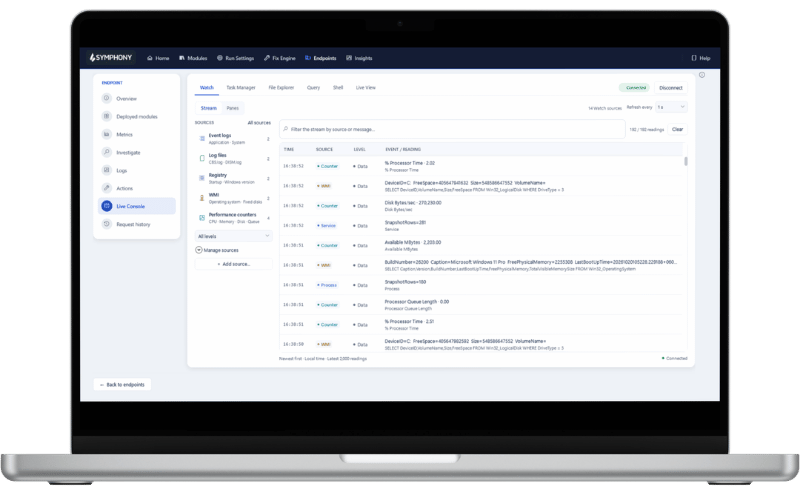
When a user’s computer isn’t working as it should, Live Console lets your IT team look inside the device as it happens. This helps them find the cause and fix it, all from one screen.
Specialists can join the same session and, where it can help, the user can share their screen. The fix is then checked before the ticket closes.
When problems occur on user devices, the fix is often quick. Finding the cause is what takes the time. This is because evidence is scattered across logs, running apps, settings, and the user’s own session. Support teams typically have to rebuild that picture from scratch on every ticket. And when the root cause is not confirmed and dealt with, the issue comes back.
Engineers jump between remote desktop, logs, scripts, file shares, and dashboards. Losing the thread is common.
Each handover mostly starts again from zero. Tasks are repeated, and users are asked the same questions twice.
By the time someone connects, the moment, from a technical perspective, has passed. The user's memory is the only evidence.
Mapped drives, OneDrive, and profile problems are invisible from an admin account, so only the user can see them.
Support usually starts by taking over a user's screen. This can apply even when the answer is sitting in the logs.
"Command sent" is typically treated as "problem solved". Often, however, the ticket comes back days later.
Symphony Live Console is a live endpoint troubleshooting workspace for Windows devices. It is part of the Access Symphony suite of products from Access IT Automation. Live Console shows IT teams what is happening on a user’s computer in real time. It also lets IT fix the problem and confirm the fix worked. All actions are logged, and every screen share is approved by the user. Live Console is designed for IT operations managers and the engineers who resolve endpoint issues, as well as the stability teams responsible for stopping issues from recurring.
Live Console is part of Access Symphony. Every investigation starts somewhere. For a stability team, it might be a pattern spotted across hundreds of devices. For an engineer, it’s usually a user’s ticket. Access Symphony connects the two, following the trail down to the device behind the problem. Live Console lets your team first see what’s happening and then fix it.
Symphony Insights
Compare devices and applications across the estate to see which machines and apps are working hardest.
“Which devices are struggling, and which apps are causing the issues?”
Endpoint History
Replay processor, memory, disk, and network activity for the exact window when the user encountered the problem.
“What was running when it froze at 3pm yesterday?”
Live Console
Watch the device live, find the process or setting at fault, and take a permitted action in the right user context.
“What is the device doing right now, and can I fix it?”
Symphony Fix Engine
Turn a proven fix into an approved runbook that all users can accept with one click when needed.
“How do we stop this ticket from coming back?”
Live Console gives you five tools in one live connection to the device. Engineers can move between them without reconnecting or losing their work.
Watch
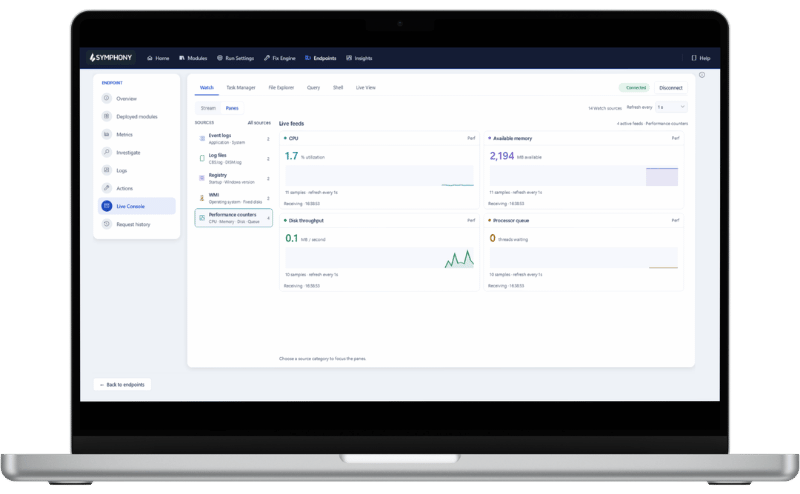
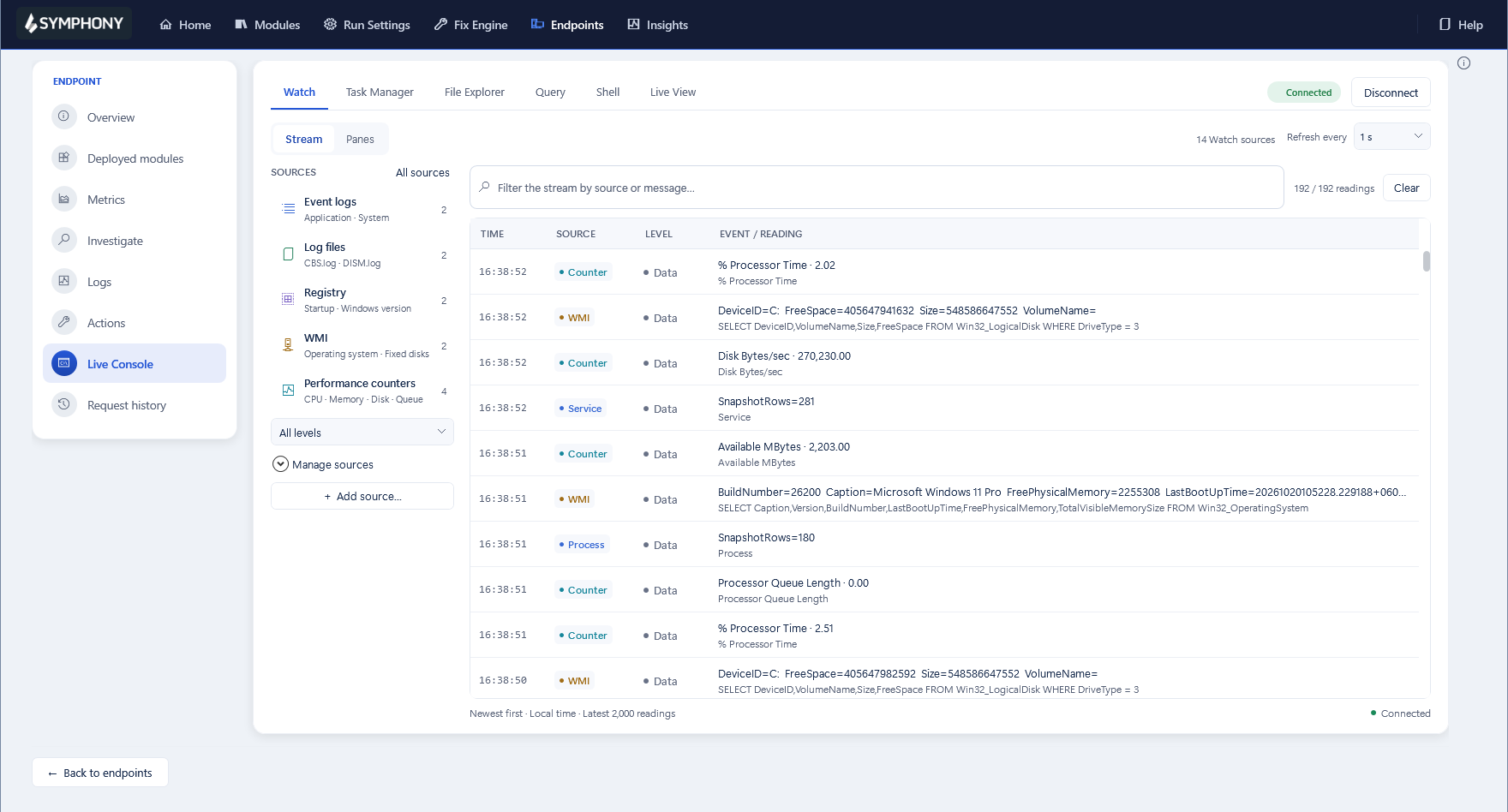
As soon as the session opens, Live Console starts gathering errors, warnings, log activity, setting changes, and performance readings from the device. This info is put into a live feed that engineers can follow, reducing the need to rely on user descriptions of the problem.
Task Manager · Query
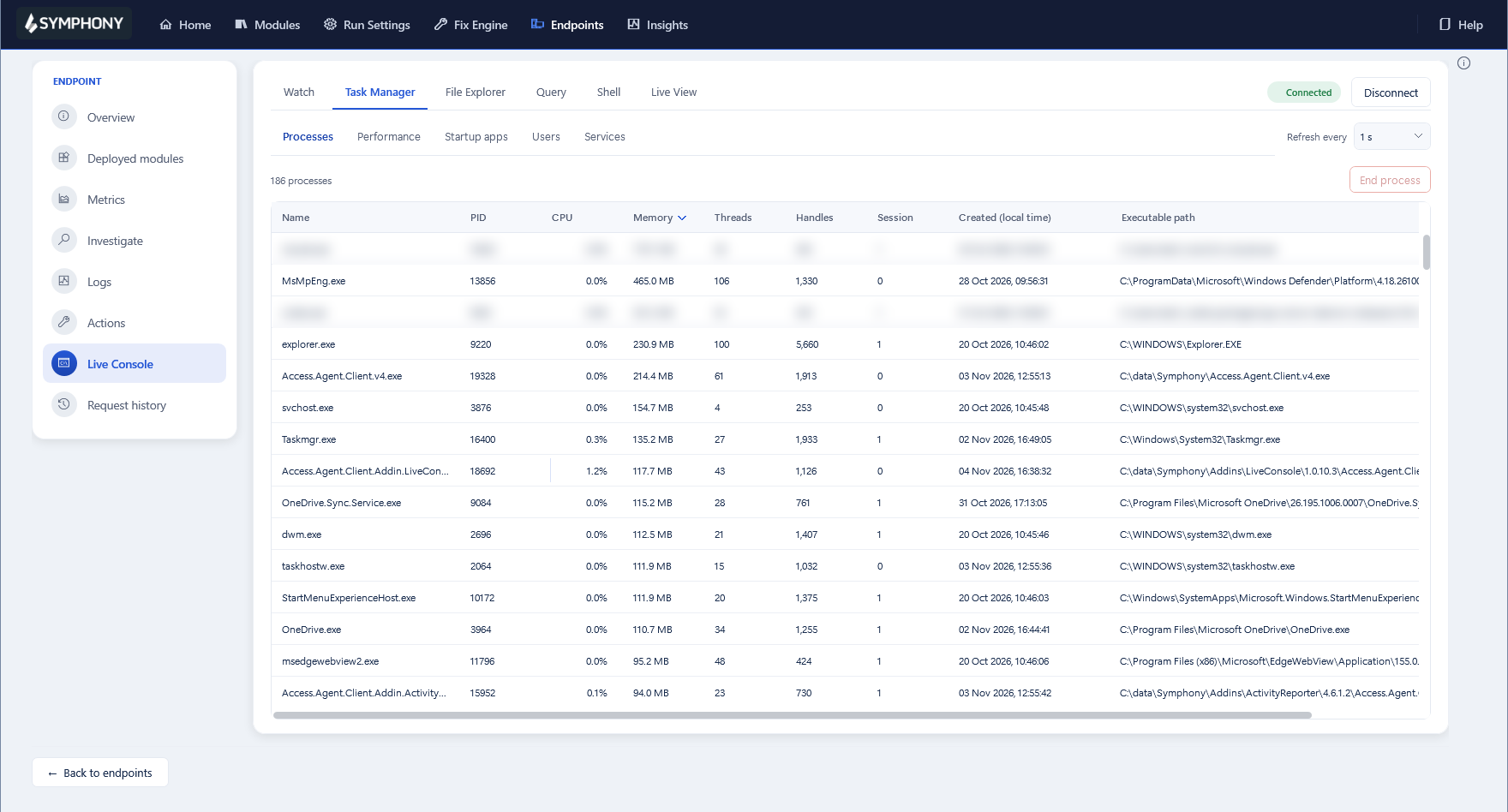
See every running app and service, how much processor and memory each one uses, and how the device has performed over the last ten minutes. Engineers can also ask specific questions, such as which apps are using the most memory. The answer is returned in seconds.
File Explorer
Switch to the signed-in user’s view to open their mapped network drives, OneDrive, and files. This is done using their existing Windows sign-in and means issues that only affect one person can be seen and fixed. No password is collected, and there is no switch to admin rights.
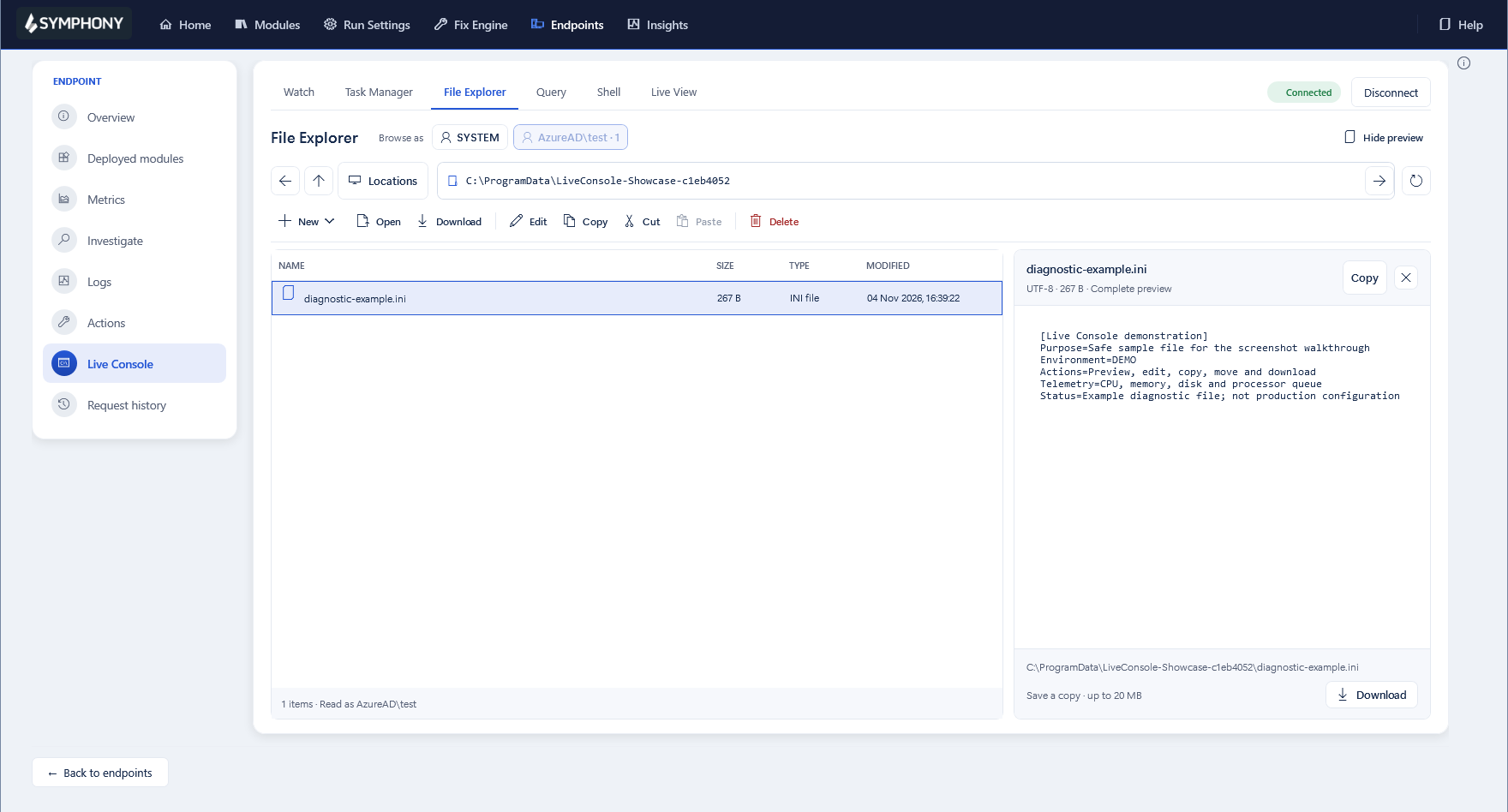
Shell · Services
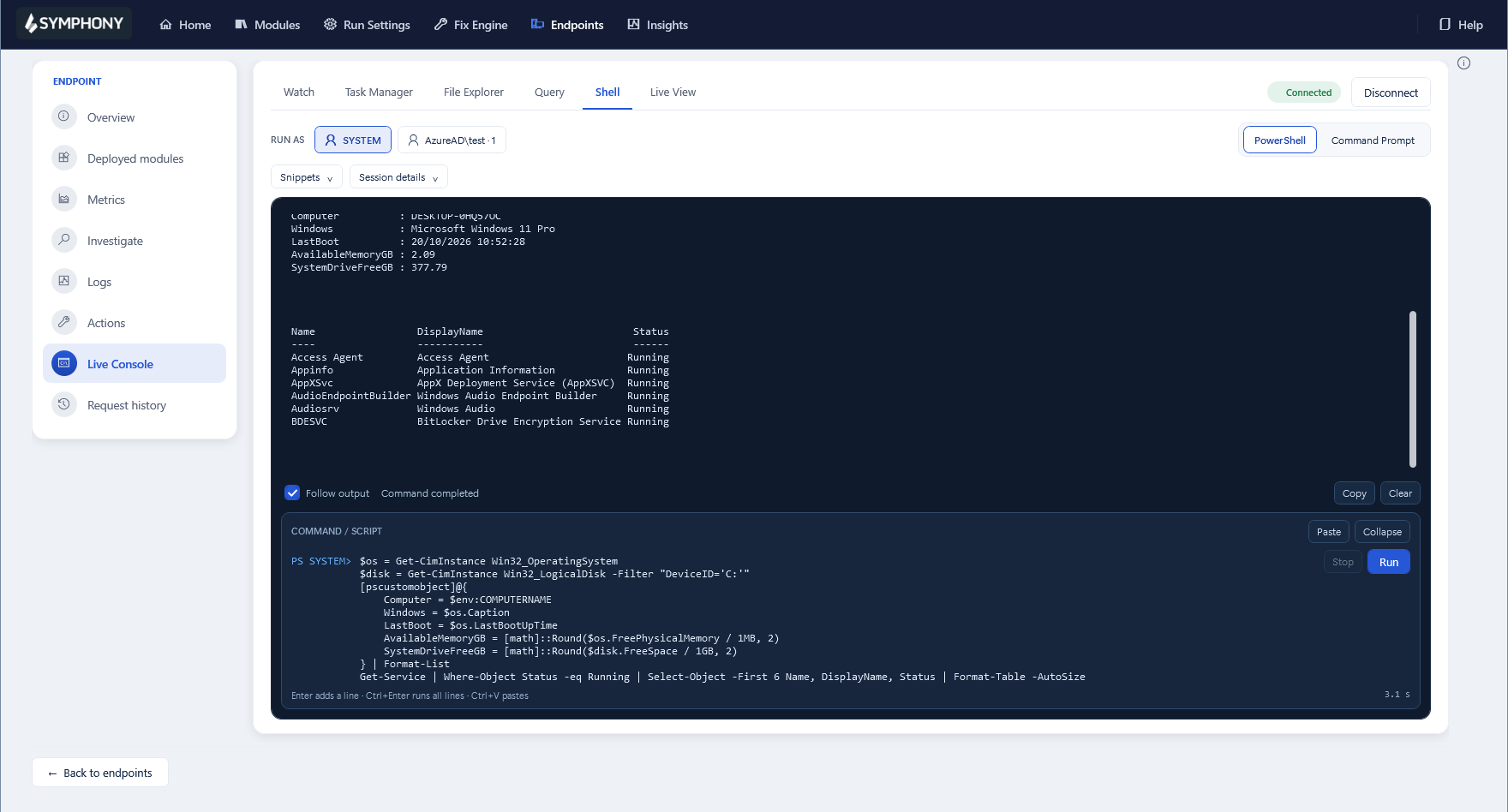
Restart a service, stop a stuck app, edit a settings file, or run a PowerShell script as the system or the user. Live Console checks that it is acting on the right target, then reports whether the action completed, failed, or timed out.
Screen
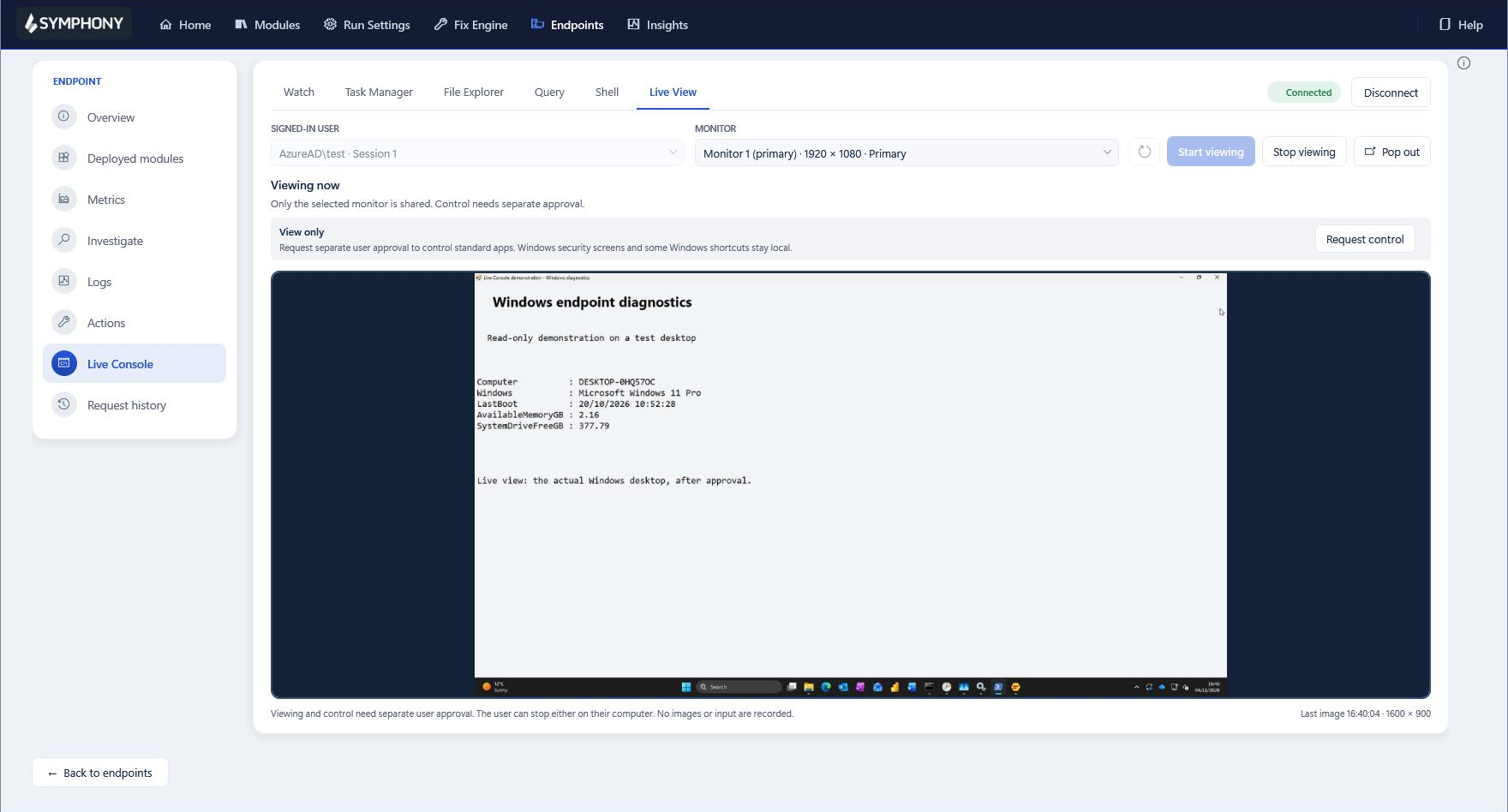
When the evidence isn’t enough, engineers can ask to see the user’s screen. The user must approve the request. Approval for mouse and keyboard control must be granted separately. The user can stop either at any time.
Practical example: a user reports that Outlook freezes every afternoon. Here is how an engineer can resolve this issue in a single Symphony session.
History and live readings indicated that Outlook's cache was the cause before the engineer interacted with the device.
Their only involvement was approving the fix.
The ticket closed on live readings showing the problem had gone.
The same fix is ready for every device showing the same pattern. This is made available before those users raise a ticket.
Unresolved device problems show up as longer resolution times and more escalations. Users lose productivity too, and the impact grows every time the same issue returns. Live Console gives your team the evidence it needs to resolve issues sooner and stop them coming back.
Speed
With evidence available from the start, engineers can start fixing the problem straight away, shortening mean time to resolution.
Efficiency
Specialists can join live sessions. This means nothing needs to be handed over and more tickets are resolved at first contact.
Quality
Each fix reports its real outcome and is checked against live readings before the ticket closes.
Experience
Most investigations happen in the background. Users are asked to share their screen only when it helps.
Stability
A proven fix can be offered to every device showing the same pattern, reducing the number of tickets raised.
Most IT teams already own remote support, monitoring, and scripting tools, with each doing its part of the job well. Live Console closes the gaps between them.
If you use
Remote desktop tools show you the screen, but only while the problem is happening and only by interrupting the user.
Live Console adds the evidence behind the screen.
This means your team can investigate while the user keeps working.
If you use
Monitoring and DEX tools show trends across the estate, but acting on them means switching to another tool.
Live Console adds a direct route from the pattern of the issue to the fix.
Engineers can take all steps inside the Access Symphony platform.
If you use
Scripts and RMM tools run commands, usually as admin, one engineer at a time, with no confirmation they worked.
Live Console adds commands as the user and confirms outcomes.
It also adds shared sessions that can include up to 16 engineers.
Any tool that can see inside a device and make changes to it needs clear limits. Live Console builds those limits into every session.
Engineers need explicit permission. Permissions to watch a device, query it, and run commands are granted separately.
Who acted and what they did is logged before the action reaches the device. If it can't be logged, it doesn't run.
Existing Windows sign-ins are utilised, and nothing switches to admin rights unless the engineer chooses it.
Viewing and control each need user approval. The session ends if the user locks the device, logs off, or disconnects.
The best way to judge Live Console is to follow a real ticket from first evidence to a confirmed fix.
Existing customers
Live Console runs on the Symphony agent and platform you already have. Talk to your account team about enabling it.
Guided demonstration
We’ll go from an estate-wide pattern in Insights to a live fix and a reusable runbook, with a second engineer joining the demo.
Controlled pilot
Track time to first evidence, handovers, time to a confirmed fix, and reopen rates, then compare with current ticket handling.
Symphony Live Console is a live troubleshooting workspace for Windows devices. It is built into Access Symphony and lets IT teams see what is happening on a user’s computer in real time. They can fix the cause on the spot and confirm the fix worked. All actions are logged and screen sharing is only possible when approved by the user.
Endpoint troubleshooting is the process of finding and fixing problems on individual devices such as laptops and desktops. Symphony Live Console supports it by showing live evidence from a Windows device and letting engineers fix the cause in the right user context. It also confirms the fix worked.
Live Console removes the need to switch between remote desktops, event logs, scripts, file shares, and monitoring tools. It keeps the evidence together when a ticket is escalated, captures problems that come and go, shows issues that only affect one user, reduces screen takeovers, and confirms whether fixes actually work.
Remote desktop tools start by taking over the screen. Live Console starts with the evidence from the device itself. This includes errors, logs, running apps, services, and performance. Screen viewing is available when it helps, with separate user approval for viewing and for control. However, many issues can be resolved without interrupting the user at all.
Symphony Insights shows which devices and applications keep causing problems across the estate. Endpoint history shows what happened when the issue occurred, and Live Console confirms the cause on a live device. Once a fix is proven, Symphony Fix Engine can offer it as an approved runbook to all the devices identified as showing the same pattern.
Symphony Insights shows which devices and applications are causing problems across the estate. Endpoint history shows what happened on a device at a specific time. Live Console shows what is happening now and lets engineers fix it. Symphony Fix Engine turns that fix into an approved and repeatable action that users can accept with one click.
Yes. Live Console can work as the signed-in employee, using their existing Windows sign-in. This makes it possible for engineers to see mapped network drives, OneDrive, and files. No passwords are collected, and it never falls back to admin rights without the engineer deciding.
Yes. Up to 16 engineers can join the same live session on one device. They share the device data, while each engineer’s queries, commands, and file work stays private to them.
Yes. The user approves a viewing request that shows who is making the request. Mouse and keyboard control require a second, separate approval. A visible notice stays on screen so the user can see when sharing and control are active. The user can also stop sharing at any time. Screen images are never recorded, while approval prompts can use your organisation’s own branding.
Yes. Each action is recorded against the authenticated engineer before it runs. If the action cannot be recorded, it is blocked. The record covers who acted, what they ran, and on which device. File contents and screen images are not recorded.
Live Console supports Windows devices running the Access Symphony agent. Screen assistance requires Windows 10 or later, as well as a signed-in, unlocked desktop.
Existing Access Symphony customers can talk to their account team about enabling Live Console. New customers can book a guided demonstration or discuss a controlled pilot measured against their own support tickets.
| Platform | Windows devices with the Symphony agent and Live Console module. Screen assistance needs Windows 10 or later and an unlocked desktop. |
|---|---|
| Collaboration | Up to 16 engineers per device, two screen viewers per device, and one controller per Windows session. |
| Live evidence | Windows event logs, log files (including CBS and DISM), registry, WMI, and performance counters. The live feed keeps the latest 2,000 readings. |
| Query | Read-only questions across processes, services, sessions, startup apps, performance, registry, files, event logs, and WMI. Up to 1,000 results and 30 seconds per query. |
| Files | Browse as system or as the employee, including mapped drives and OneDrive (read-only). Edit text files up to 256 KB and download up to 20 MB with checksum verification. |
| Commands | Windows PowerShell and Command Prompt as the system or the signed-in employee. Multiline scripts up to 8,192 characters. Interactive prompts are not supported. |
| Screen | View and control with separate approvals. Up to two images per second. No recording, audio, or clipboard transfer. |
Limits reflect the current release and are not a performance or capacity SLA.
Access Symphony simplifies IT support with real-time visibility, automation, and self-service. Live Console adds live troubleshooting for a single device.
Module
See performance and usage patterns across your whole estate.
Module
Automated and on-demand fixes, ready to run on any device.
Module
Real-time device data collection and automation
Module
Targeted desktop messages, surveys, and alerts for users.
Module • New
Live endpoint troubleshooting for Windows devices.
Book a guided demonstration where we will follow a real support scenario from an estate-wide pattern to a confirmed fix on a live device.
"*" indicates required fields

Repetition is a daily reality for packaging teams. When a vendor releases an update for an app that…
AppManagEvent is always a highlight on the endpoint management calendar. Access IT Automation is a Gold Partner of…
As of July 2026, Access Symphony is now natively supported on ARM64-powered Windows 11 devices with no emulation…
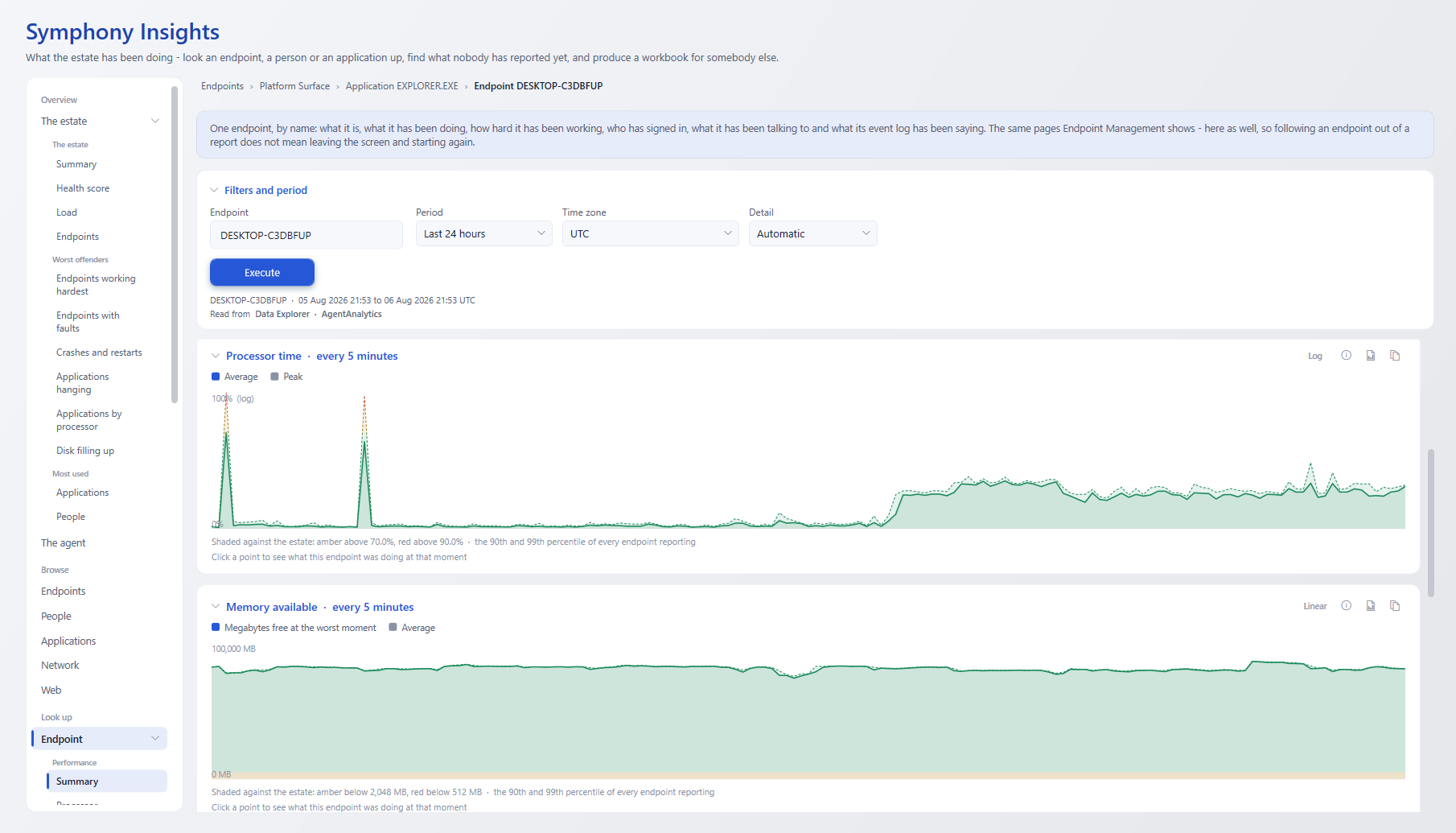
Most IT reporting tells you what happened. Symphony Insights asks the harder question: What exactly should you do…
"*" indicates required fields
Our complimentary demonstration is designed to highlight the product features most pertinent to your needs. From application packaging and testing to actionable insights and performance visualisation, let’s explore how you can elevate your modern desktop.
"*" indicates required fields